Design a custom deckbox. Print it at home.
Choose the size, compartments, artwork and colours in your browser. Download the files, then print your deckbox on your own 3D printer.
- Sized from your cards
- Colour-ready 3MF and STL files
- Checked before download
Coming to Kickstarter. App access is currently invite-only.
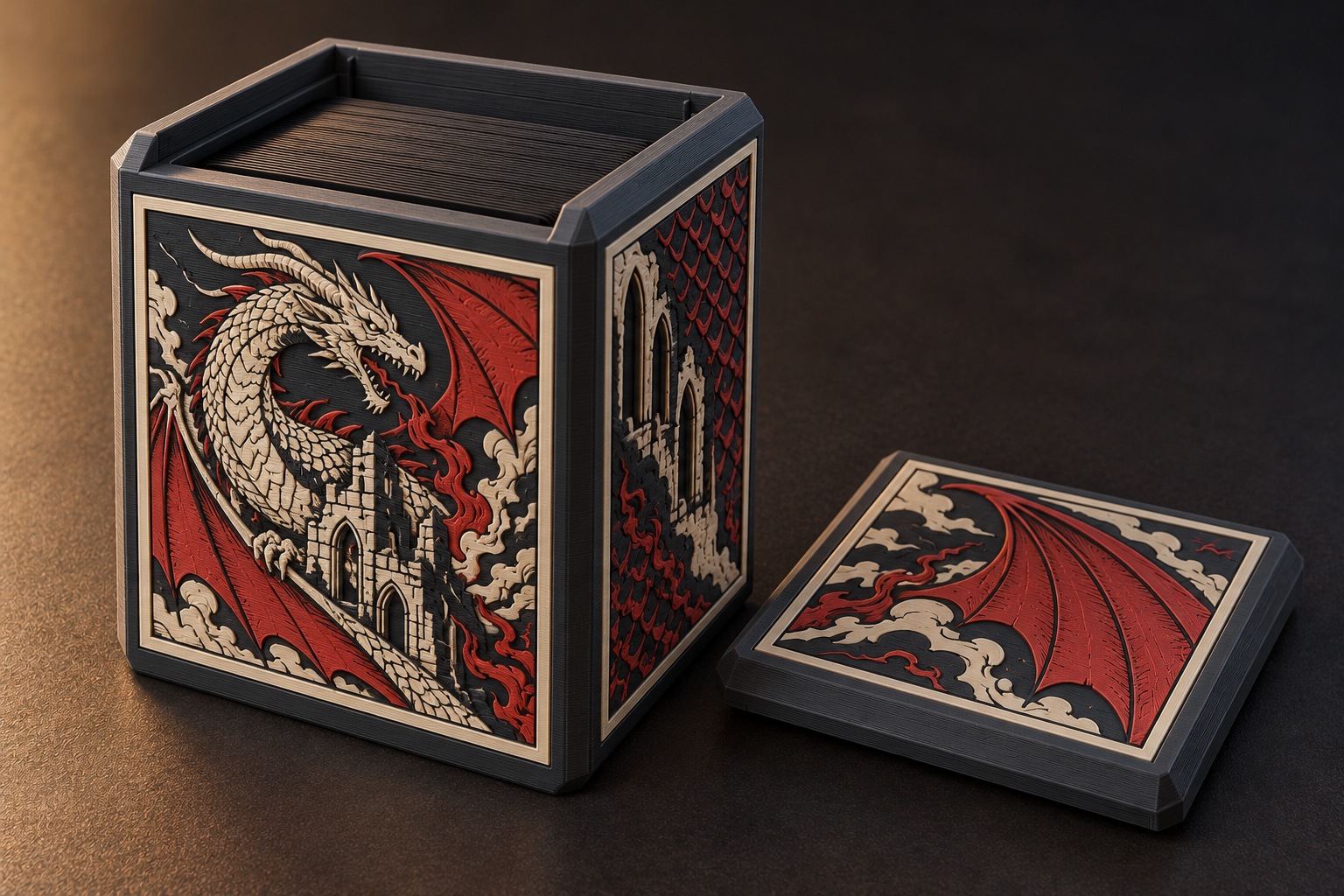
One deck. Tokens. A whole collection.
Choose a layout for what you want to store, then make the artwork and colours your own.
-
One deck
A single stack of cards fills the cavity. The simplest box.
-
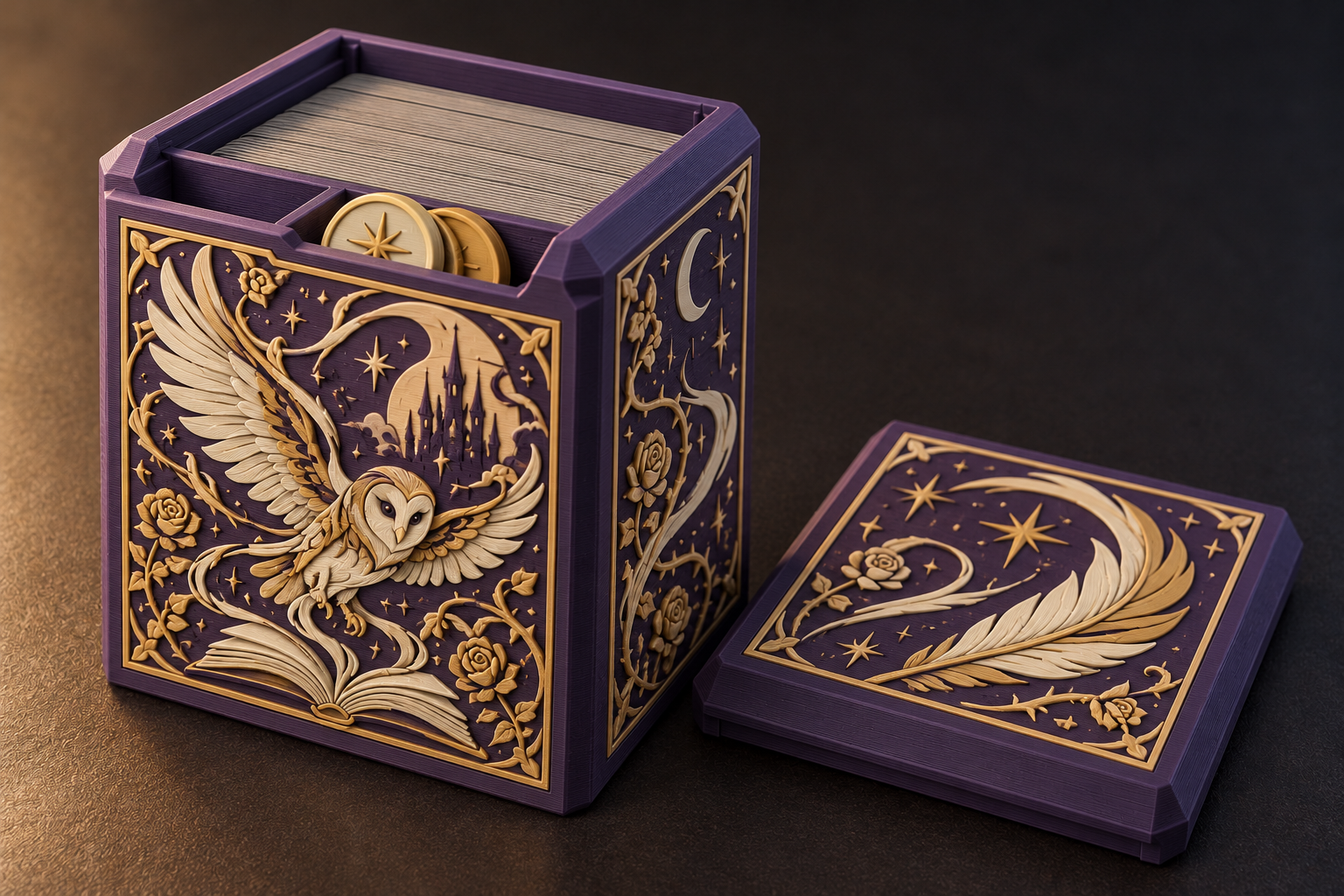
Deck and tokens
A divider in front of the cards closes off a separate chamber for tokens or counters.
-
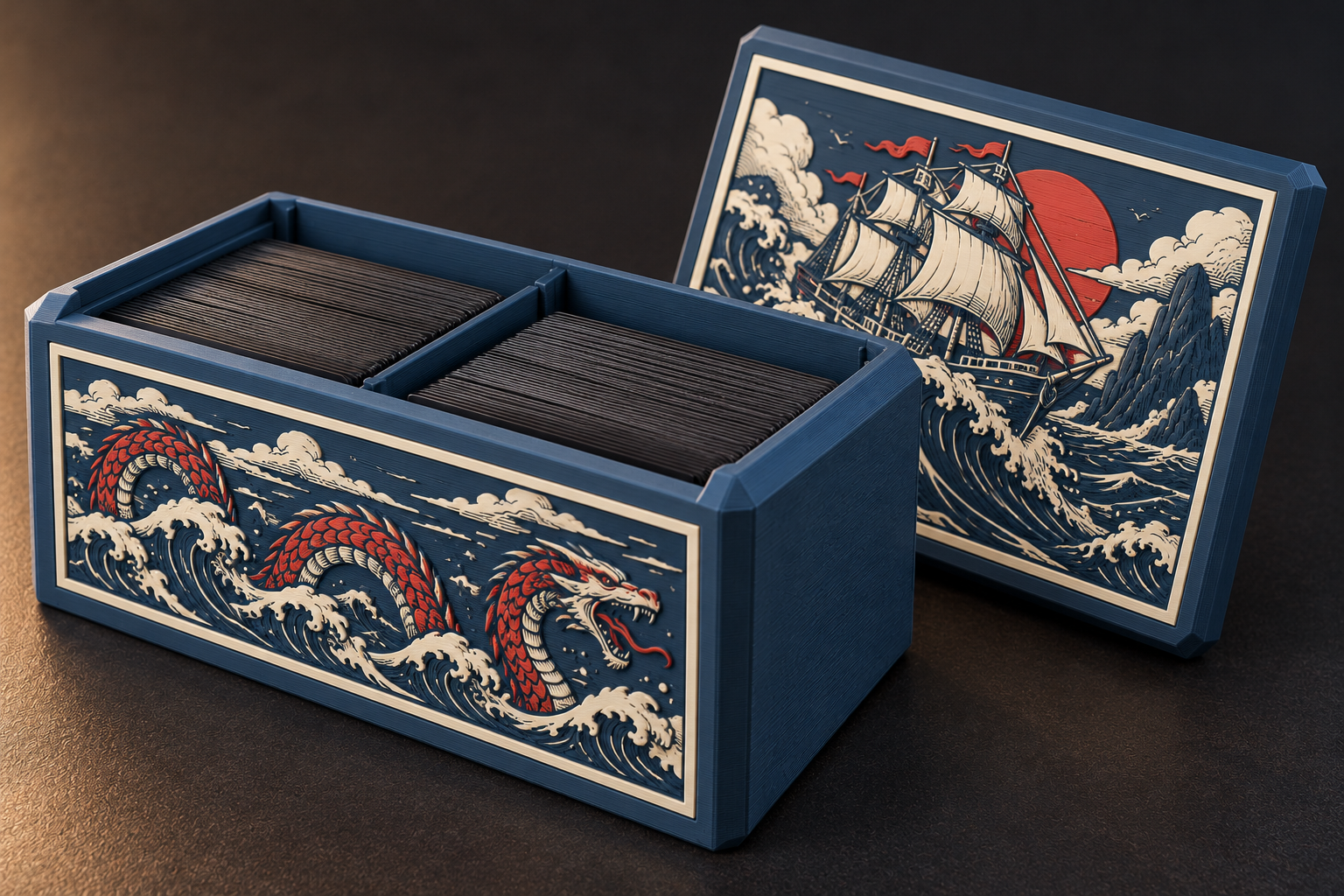
Themed card storage
Build a larger storage box for your collection, with rows of cards separated by walls. Add artwork, a name and colours to match your theme.
AI-generated layout and artwork concepts. These are not exported models or photographs of tested prints.
Choose what goes in your box.
Start from a template or from your own numbers, then change as much or as little as you like.
Size the box around your cards.
The cavity is worked out from three things you enter:
- Card size
- Standard (63 × 88 mm), small (59 × 86 mm), a game preset, or your own width and height.
- Sleeves
- None, single, double or triple. Sleeves make each card a little thicker and larger; triple sleeves add the most.
- Card count
- How many cards the stack holds. With the sleeves, this sets how deep the stack is.
A small clearance is added, and you can change it. If you have measured your own sleeved stack, you can enter that depth instead. Printers and filaments differ, so the first print of a new design is still a test; fit coupons help with the parts that fit into each other.
Customise the details.
Contents
- Collection storage with up to six card rows
- Chambers in front of the deck, closed off by dividers
- Dice drawers with token bins, or a drawer tower instead of a deckbox
Lid and body
- A sliding lid, or a lift-off lid for some layouts
- Lid magnets and a lid notch to open it
- A front window to show a featured card
Artwork and name
- Your own images on the panels, raised in relief
- Use your own artwork or start with ours
- A removable front nameplate with your own text
Saved projects
- Projects saved on this device
.deckboxproject files to save and open anywhere
Artwork that matches your theme.
Creatures, ancient relics or intricate machinery. Bring your own image and choose colours for the base, frame and raised artwork.
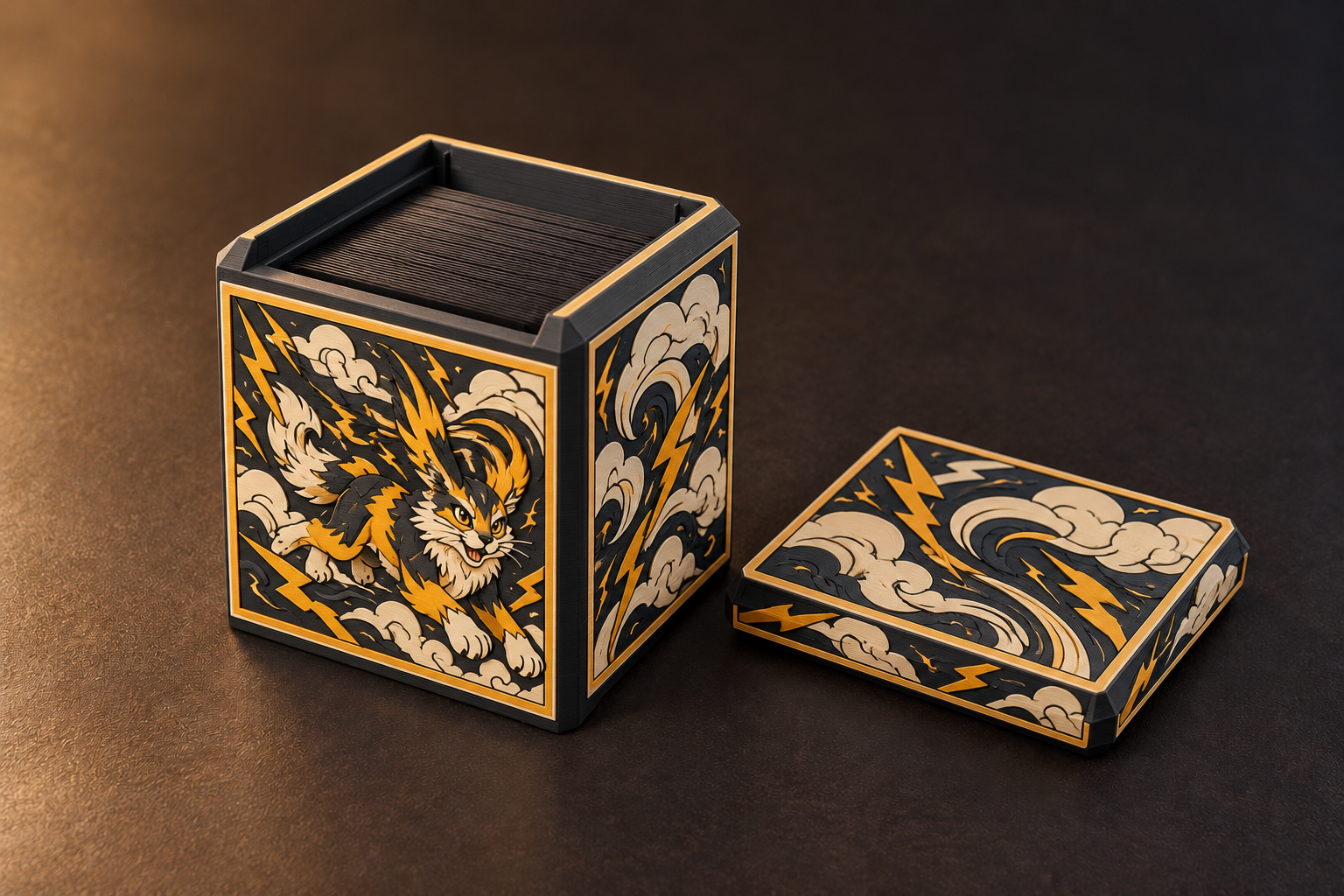
Creature artwork
Bold shapes and a strong colour contrast.
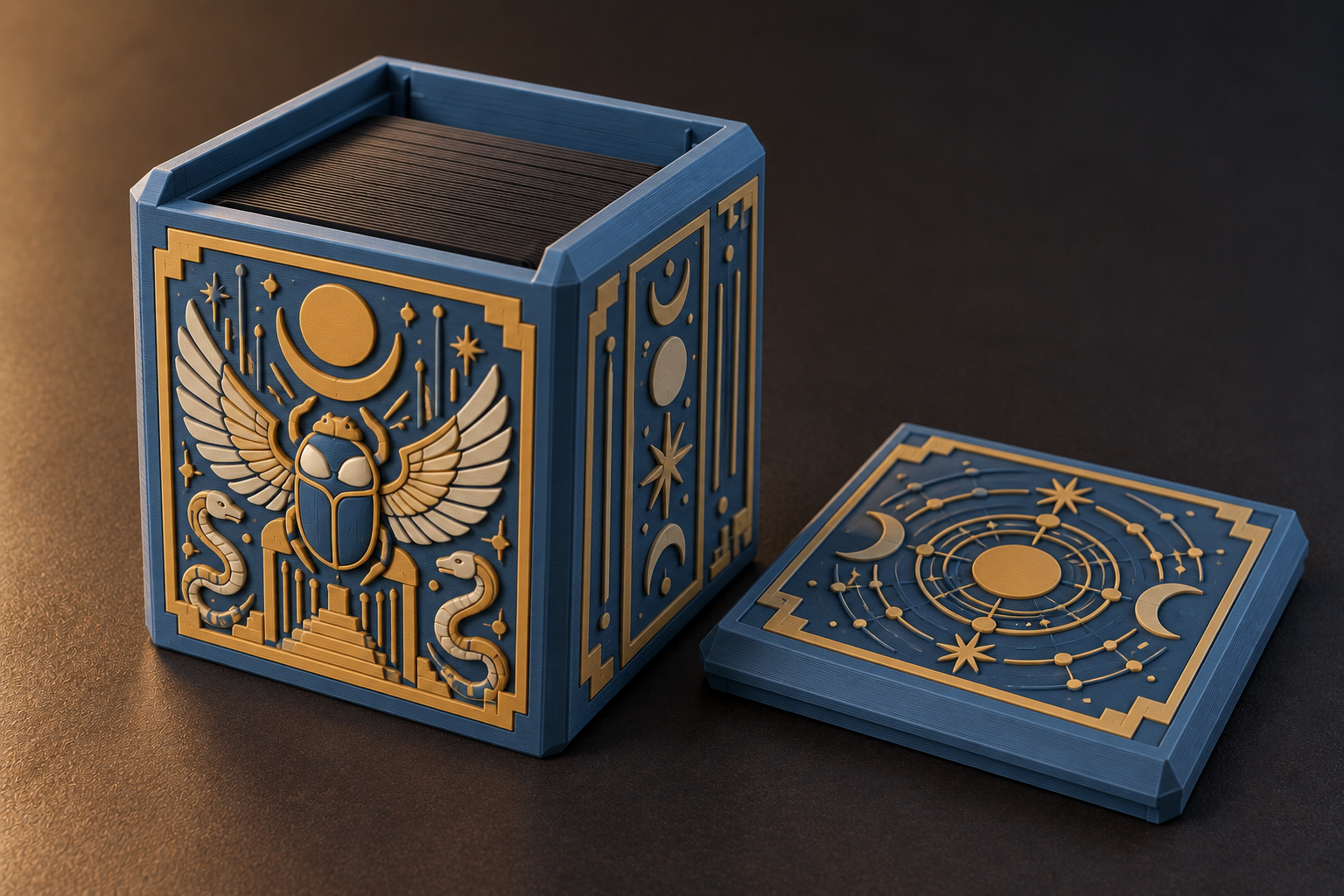
Ancient relic
A framed illustration with matching side and lid details.
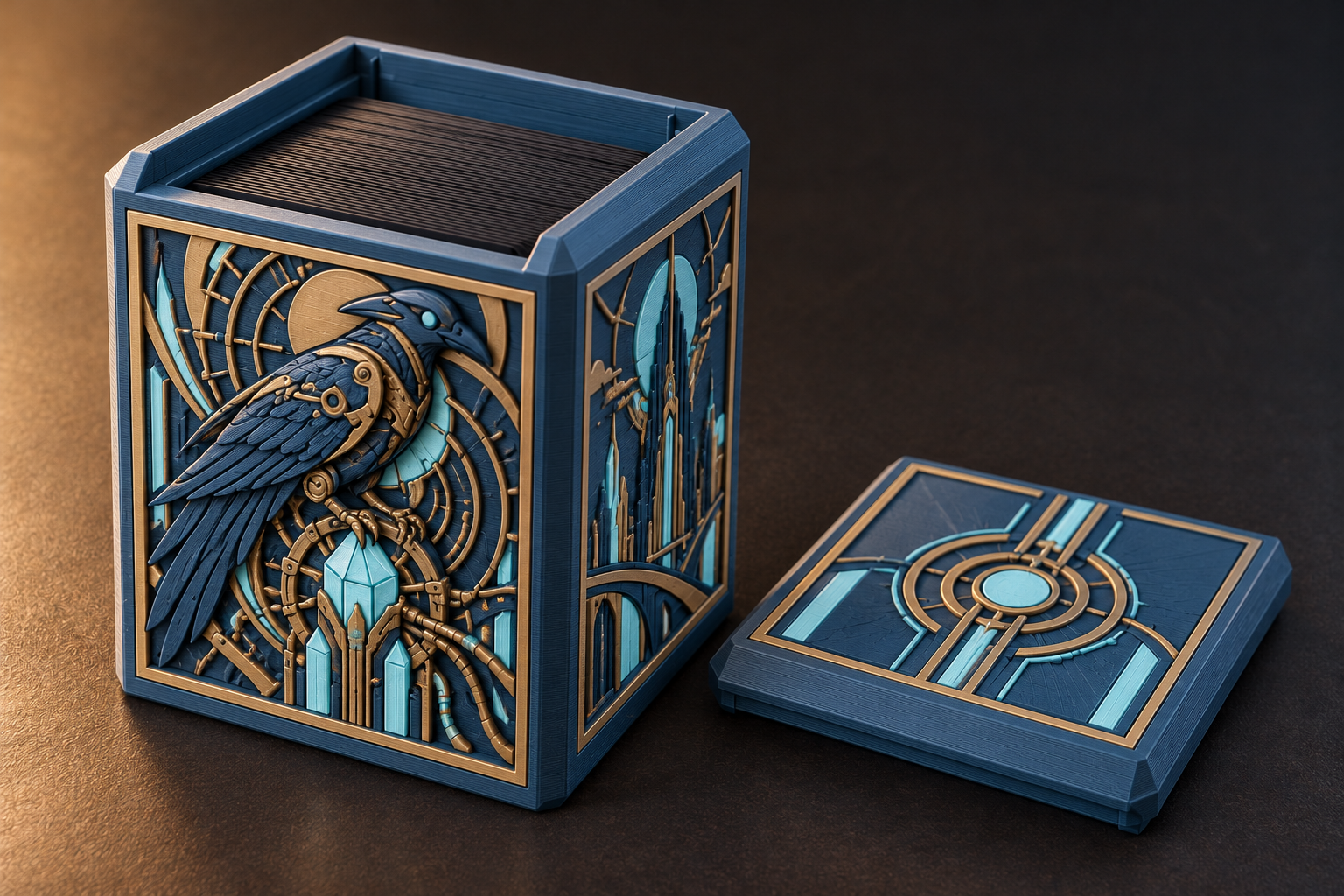
Arcane machinery
A detailed scene that continues around the box.
AI-generated artwork concepts, not included templates. The exact relief, colours and printable detail need to be checked in the editor and tested in a print.
Download a colour-ready 3MF, open it in Bambu Studio or OrcaSlicer, and match each colour to your filament. The editor colours are a preview; the filament determines the printed colour.
One-colour printer? Download the per-part STL and print everything in one filament.
Design, preview, download.
Design in your browser, then prepare the files in your usual slicer. No CAD experience needed.
-
Design
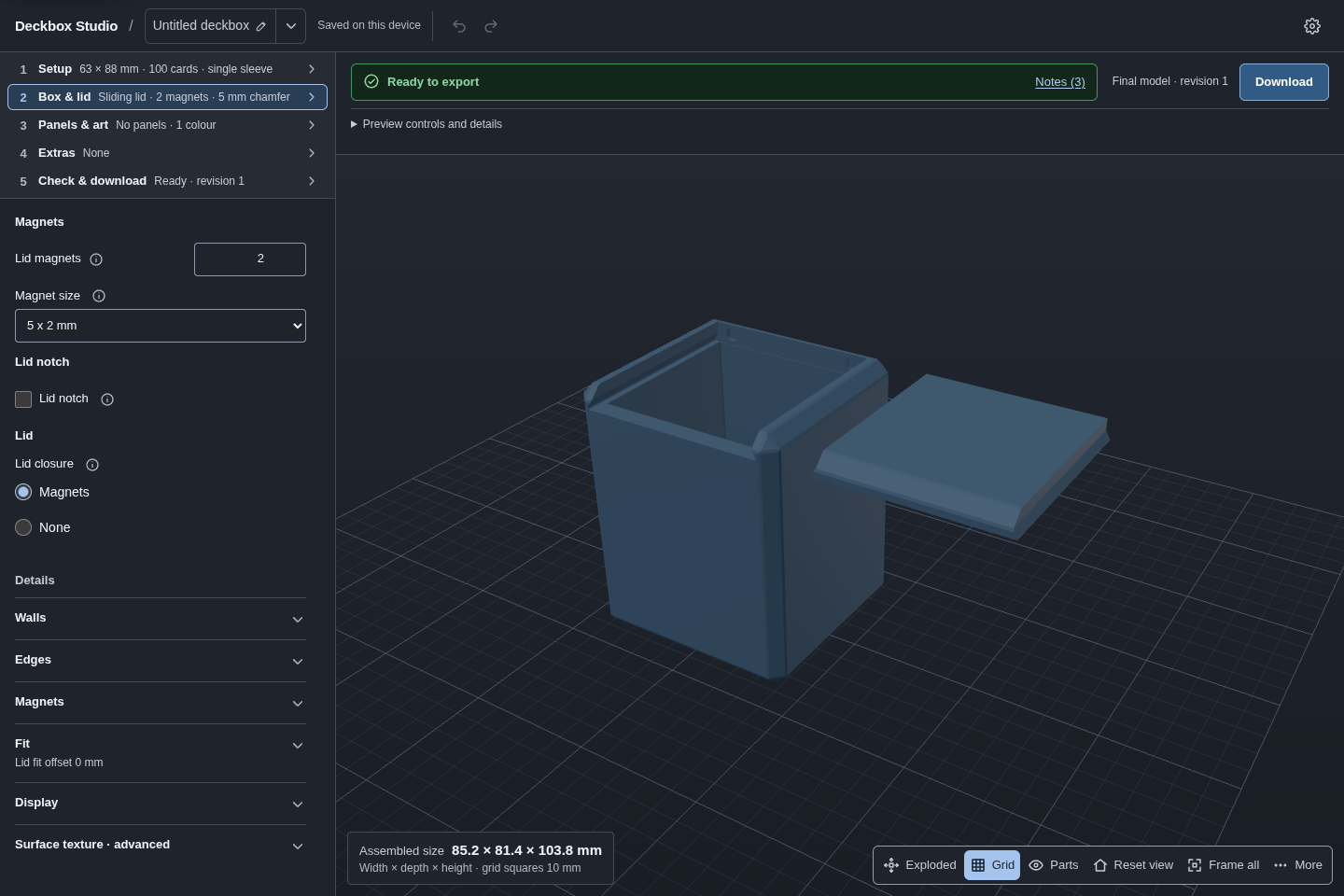
Start from a template. Set your cards and sleeves in Setup, choose a lid, then add artwork and any extras. More options open within each section.
-
Preview
Generate a preview to inspect the box and lid in 3D. Turn on Live preview if you want draft updates as you edit. You can also inspect the parts and dimensions in a text view.
-
Download
In Check & download, generate the design at final quality. When it passes validation, download per-part STL, colour-ready 3MF for Bambu Studio and OrcaSlicer, and optionally a combined STL or OBJ/MTL. Then slice and print as usual.
Checked before you download.
Downloads unlock only for a current, final-quality generation that passed validation. If something fails, the editor says what and how to fix it, and keeps your last valid design. Checks that did not run are labelled, so you know what was looked at. File checks do not replace a test print.
Designs stay on your device. Geometry, artwork processing, checks and export run in your browser, offline after the first load.
- Changes not generated
- Validation failedFix the problems listed, then generate again.
- Ready to export
Common questions.
Deckbox Studio is invite-only while it is tested, and public sign-ups are closed. No physical prints have been measured yet, so we claim no proven fit, strength or durability.
Do I need a 3D printer?
Yes: a home 3D printer, a slicer and a desktop or tablet browser. Deckbox Studio makes design files; it does not supply printed boxes and there is no print service. A multi-colour printer gets the most from the colour-ready files; a single-colour printer prints the per-part STL in one filament.
Which slicers and printers does it work with?
Colour-ready 3MF for Bambu Studio and OrcaSlicer, with the print colours already assigned; millimetre STL per part for any slicer that reads STL; combined STL and OBJ/MTL if you want them. Your printer is whichever one your slicer supports. We produce no G-code and never control a printer. Preview colours in the app are approximate: real filaments are chosen in the slicer.
Will my cards fit, and what are fit coupons?
The cavity is sized from the card size, sleeves and count you enter, so double sleeves are part of the sum. How well printed parts fit each other, such as the lid in its track or a drawer in its slot, depends on your printer and filament. Fit coupons are for that:
- In Check & download, generate the fit coupons: small test pieces for supported parts of your design, such as a sliding lid, drawer or magnet hole.
- Print them and try the mating pieces together; choose the size that fits best, or type a value you measured.
- Apply the result to this design, or save it as a fit profile for that printer and material.
Coupons never change the design until you apply a result. No physical prints have been measured yet, so we claim no proven fit, strength or protection in a bag.
Which games and cards does it cover?
Standard cards (63 × 88 mm), small cards (59 × 86 mm), presets for common game card sizes, or your own width and height; sleeved or not, in the count you play. Choose a single-deck layout or a larger collection storage box with multiple card rows, then personalise it with your own artwork and colours.
How is this different from downloading a ready-made model?
A ready-made model works when its size and layout suit your deck. Deckbox Studio lets you change the card capacity, compartments, artwork and colours, then save the design to edit again later. Printing still takes material, time and sometimes a reprint.
Do I need CAD experience?
No. Start from a template and work through the editor's sections: Setup, Box & lid, Panels & art, Extras, then Check & download. Essentials show first; more options open within each section. Optional Live preview shows a draft; downloads need a final generation that passes validation. You still prepare the print in your slicer and test the result.
What does "checked before you download" mean?
The current design must complete a final-quality generation and pass validation before its downloads unlock. Checks that did not run are labelled rather than shown as passed. If a generation fails, the editor keeps your last valid design and says what to fix. These are checks on the generated files; they do not certify physical fit, strength or a successful print.
Does it work on my phone?
Desktop and tablet. The editor is built to sit beside your slicer, and a 3D preview with a sidebar wants the room. Narrow windows and 400 % zoom still reflow to one column so nothing is lost, and a parts-and-dimensions view stands in for the 3D preview, but there is no phone workflow yet.
Where do my designs live, and do I need to be online?
On your device. Geometry, artwork processing, validation and export run in your browser, offline after the first load. Reopen a design through "Projects on this device", or use "Save file" and "Open file" to keep a .deckbox project file wherever you like. Local projects are not an automatic cloud backup. Sign-in is for invited testers now and for billing later; making the box never depends on it.
Can I put my own art on it? Is yours safe to use?
Yes: your own image goes on any panel in relief, from your own file. Our starter art is procedural and ours. No game art, game logos, card frames, symbols or characters ship with the app. Images you bring in are your responsibility, as in any tool.
Can I use it today, and what will it cost?
Not yet: it is invite-only and public sign-ups are closed. Invited testers use "Sign in". Follow on Kickstarter to hear when the campaign launches. Prices and rewards are announced with the campaign, stating what is included and what is finished. Nothing is sold and no account is opened before our terms are shown and accepted.
Is there AI in it?
An assistant connection (a local server) can drive the same editor through the same checks; nothing it does skips validation. No AI model makes your geometry. This page uses AI-generated images to explore possible artwork and finishes; they are labelled as concepts and are not app exports or tested prints.
Follow the launch on Kickstarter.
Follow the campaign to hear when Deckbox Studio launches. Prices and rewards will be stated on the campaign page.
The campaign page is not live yet. The follow link will be added here when it is available.